Key Takeaways
- You don't need Git or GitHub: Visual, offline tools like Plastic SCM are perfect for solo creators and completely free.
- Stop using zip files: A local version control system only saves the changes (the "diff"), saving massive amounts of disk space.
- It's for everything: Version control works brilliantly for Word docs, Photoshop files, Lightroom catalogs, and basic text files.
- Clean your files first: Rename messy files with a tool like RenameIQ before adding them to your repository to keep your history clean.
If you've ever had a folder that looks like this, you're in the right place:
My_Report.docxMy_Report_final.docxMy_Report_final_v2_USE_THIS_ONE.docxMy_Report_final_v3_Jens_edits.docx
We've all been there. It's a stressful, chaotic way to work, and you live in constant fear of deleting the *actual* final version. When you hear "version control," you probably think of GitHub, command-line code, and complex tools for software teams. It all seems like overkill for your novel, your college thesis, or your personal photo editing.
But what if you could get 90% of the benefit—the peace of mind, the "undo" button for your whole project, the clear history—without any of the complexity? You can. This guide is my personal hack for staying sane on solo projects, no servers or command lines required.
Why Bother With Versioning for Personal Files?
Version control isn't just about collaborating with a team. For a solo user, it's about giving yourself a time machine. It solves three huge problems:
- The "Oops, I Deleted It" Problem: You delete three chapters of your novel, save the file, and your "Undo" history is gone. With version control, you can just roll back to the snapshot you saved yesterday.
- The "Which Version is This?" Problem: You have five different drafts of a resume and can't remember which one you sent to which company. Version control keeps one "master" file and a clean history of all the changes.
- The "What Did I Change?" Problem: You open a design file you haven't touched in six months and have no idea what you were working on. Version control lets you leave a simple message for your future self with every saved snapshot.
The goal isn't to be a "developer." The goal is to be able to work freely, experiment without fear, and never, ever lose your work.
Hack #1: The "Good Enough" Manual Folder Method
This is the simplest, lowest-tech method, and it's 100x better than nothing. I used this for my entire college thesis.
The idea is to create a "snapshot" of your entire project folder at key moments.
- Create your main project folder:
My_Thesis/ - Inside, create an
_archive/folder (the underscore keeps it at the top). - When you're working, you only ever touch the files in
My_Thesis/. - When you reach a milestone (e.g., "finished Chapter 1 draft" or "sent to advisor"), you
zip the entire
My_Thesis/folder and name it with the date and a description. - Move that zip file into the
_archive/folder.
Your folder structure will look like this:
My_Thesis/
├── Chapter_1.docx
├── Chapter_2.docx
├── Notes.txt
└── _archive/
    ├── 2025-10-28_Finished_Ch1_Draft.zip
    ├── 2025-10-30_Sent_to_Advisor.zip
    └── 2025-11-02_Incorporated_Feedback.zip
| Pros | Cons |
|---|---|
| - Simple, no software needed. - Easy to understand. - Works for any file type. |
- Takes up a *lot* of disk space (you're copying everything each time). - It's all manual; you have to *remember* to do it. - Hard to see *what* changed between versions. |
What *Is* a Real Version Control System (VCS)?
Okay, the manual way is clunky. A "real" VCS, even a local one, is much smarter. Instead of copying your *entire* project, it just saves the *changes* (the "diff") you make.
Imagine your file is a 100-page book. You change one word on page 50.
- Manual Method: You zip and save a *new* 100-page book.
- VCS Method: You "commit" (save a snapshot) and the VCS just records: "On Nov 2nd, the word 'blue' was changed to 'red' on page 50."
This is way more efficient! It also lets you add a message to that change, like "Fixed typo in client's name." When you look at your history, you don't see a list of zip files; you see a clean list of all your a-ha moments and fixes.
Hack #2: Using a Simple, Visual Tool (Like Plastic SCM)
GitHub can be scary because it's built around the command line and "remote" servers. But you don't need any of that. You can use a free, *visual* tool that does everything right on your own computer.
My personal favorite for this is Plastic SCM's "Gluon". (Unity bought them, so it's now free for solo users). Don't let the name fool you; it's not just for code. It's a simple, visual app that feels like Dropbox, but for versions.
It works like this:
- You point it at a folder (e.g.,
My_Thesis/). - It "watches" that folder. When you change a file, a little icon pops up.
- When you're ready, you type a one-line message (e.g., "Finished Chapter 1") and hit "Check-in."
That's it. You just saved a snapshot of your work. You can now see a beautiful, visual timeline of your project and can restore any file from any point in time.
Step-by-Step: Your First "Local Repository"
Let's walk through this. No servers, no command line.
- Install the App: Go to the Plastic SCM site and download the "Plastic SCM Cloud Edition." (Don't worry, we won't use the cloud part). Install it.
- Create a Local "Repository": A "repository" (or "repo") is just a fancy
word for the smart folder that will track your project.
- Open Plastic SCM.
- Click "Create new repository."
- Give it a name (e.g., "My_Thesis") and—this is the important part—select "Local" for the server. This keeps everything on your computer.
- Add Your Files:
- Find the repository on your hard drive (it'll be in a "PlasticWorkspaces" folder).
- Drag and drop your project files (your
.docx,.txtfiles, etc.) right into that folder.
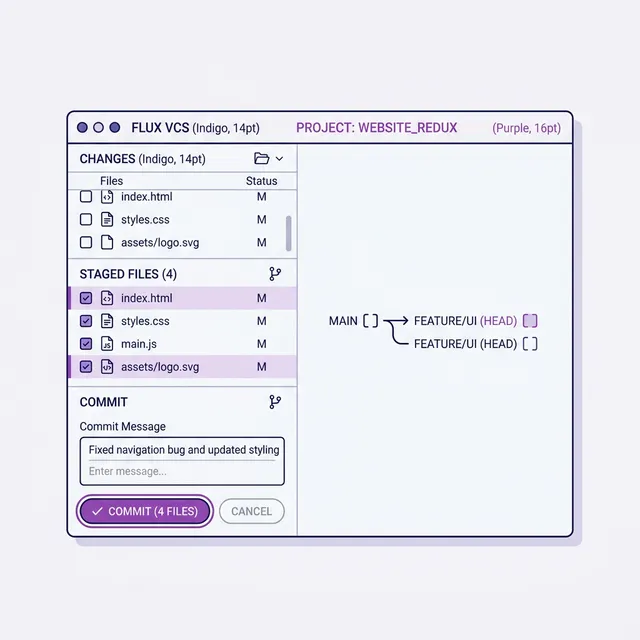
- Make Your First "Commit":
- Go back to the Plastic SCM app. You'll see all your new files listed as "Added."
- In the "Comment" box at the bottom, type:
Initial commit of my thesis. - Click the "Checkin" button.
You're done! You've just created your first version-controlled project. Now, go work on your
Chapter_1.docx file. When you save it, Plastic will light up and show it as
"Changed." When you're ready for another snapshot, just add a new comment (like "Added section
on 19th-century history") and hit "Checkin" again.
This Isn't Just for Code! (Docs, Photos & More)
This "VCS" hack is a lifesaver for non-code projects:
- Writers: Track every draft of your novel or script. Experiment with a new plotline on a "branch" (a safe side-version) and "merge" it back in if you like it.
- Designers: Save snapshots of your Photoshop or Illustrator files. You can see how your design evolved and easily go back to a previous concept. (Note: It saves the *whole* file, not just the "diff," but the history is still a lifesaver).
- Students: Keep a clean history of your thesis, from outline to final draft. See exactly what feedback you incorporated and when.
- Accountants & Small Biz: Track revisions of quarterly reports and financial statements. Never lose a previous year's adjustment again.
- Photographers: You can even version-control your Lightroom catalog file to protect your edits.
Pro Tip: Simplify Even Further
While version control protects your files' history, you can also automate the *processing* of those files (like merging PDFs or adding watermarks) using our guide on Automating Document Processing.
Important: Version Control is NOT a Backup
This is the one mistake I beg you not to make.
Your local repository (your Plastic SCM folder) is still just a folder on your hard drive. If your hard drive dies, your project *and* its entire history are gone.
You *still* need to back up this folder! This is where the 3-2-1 Backup Rule comes in.
- Your "live" data (Copy 1) is your Plastic SCM project folder.
- Your local backup (Copy 2) is your Time Machine or File History backing up that *entire* project folder to an external drive.
- Your off-site backup (Copy 3) is a service like Backblaze, which automatically backs up that same project folder to the cloud.
Version control gives you a time machine. Backups protect you from a fire. You need both.
The Secret Sauce: Naming Your Versions Clearly
A VCS is only as good as your "commit messages" (the little notes you leave). But it's *also* only as good as your file names.
If you dump Scan_001.jpg and Photo_123.jpg into your project, your
version history will be just as confusing as your old folder structure. You're versioning chaos.
This is where you combine hacks. Before you add files to your project, clean them up! A tool like RenameIQ is perfect for this. Run it on your "source materials" folder to intelligently name all your scans, photos, and documents *before* you "check them in" to your version control system.
When 2025-11-02_Client_Invoice.pdf shows up as "Added" in your VCS, it's already
100% clear what it is. Your file names and your version history work together, making your
project clean from the inside out.
Conclusion: Your New Superpower
You don't need to be a developer to get the superpowers of version control. Forget GitHub, forget the command line, and forget the "final_final_v3.docx" panic.
Start with the simple manual folder method if you want. But if you're ready for a real game-changer, try a free, visual tool like Plastic SCM. Spend 15 minutes setting up a local repository. The next time you accidentally delete a paragraph or want to see what your project looked like three days ago, you'll feel like you have a time machine. And that peace of mind is worth everything.
Frequently Asked Questions
Can I perform version control without GitHub?
Yes, you can easily set up simple version control without GitHub using local, offline tools like Plastic SCM, Subversion (SVN), or even by manually archiving timestamped project folders. These methods keep everything entirely on your computer without requiring remote servers or command-line experience.
What is the best version control for personal projects?
For personal and solo projects, visual local repositories such as Plastic SCM (Gluon) provide the best balance of power and simplicity. If you prefer zero software, maintaining structured chronological zipped archives is the best manual alternative for simple document revisions.
Is visual version control good for non-developers?
Absolutely. Non-technical professionals like writers, designers, and students benefit immensely from visual version control systems. They provide a clear timeline of document history, allowing you to seamlessly recover deleted work and maintain clean filenames without learning complex developer workflows.