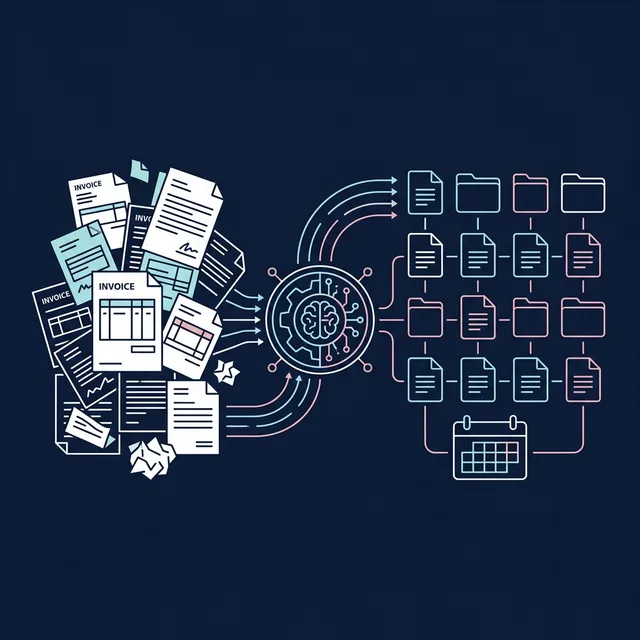
Every accountant knows the pain. It's the end of the month. You have 200 invoices sitting in a
folder, all named some variation of scan_001.pdf, IMG_2847.jpg, or
Document (3).pdf. Your firm needs them renamed to a standard format like
2026-01-15_VendorName_INV-1234.pdf.
Doing this manually takes hours. You open each file, read the vendor name and date, type the new filename, and repeat � 200 times. It's tedious, error-prone, and soul-crushing.
There's a better way. In this guide, we'll show you three methods to batch rename invoices in Windows, from free built-in tools to AI-powered automation.
Method 1: Windows File Explorer (Free, Manual)
Windows has a built-in batch rename feature that most people don't know about:
- Open the folder containing your invoices
- Select all files (
Ctrl+A) - Right-click ? Rename
- Type a base name like
Invoice - Windows adds sequential numbers:
Invoice (1).pdf,Invoice (2).pdf...
The problem: This is essentially useless for invoices. You get generic sequential names with no vendor, date, or invoice number. You still don't know which file is which without opening them.
Best for: Quick-and-dirty renaming of photos or screenshots. Not for financial documents.
Method 2: PowerShell Script (Free, Technical)
If you're comfortable with code, PowerShell can do pattern-based renaming:
Get-ChildItem -Path "C:\Invoices" -Filter "*.pdf" |
  ForEach-Object {
    $date = $_.LastWriteTime.ToString("yyyy-MM-dd")
    Rename-Item $_.FullName "$date`_$($_.BaseName).pdf"
  }
This prepends the file's last-modified date to the filename. Better than Explorer, but still has serious limitations:
- ? Uses the file system date, not the actual invoice date printed on the document
- ? Can't extract vendor names, invoice numbers, or amounts
- ? Requires PowerShell knowledge
- ? One wrong command can permanently mess up your filenames
Best for: Developers who already know PowerShell and just need simple date-based prefixing.
Method 3: RenameIQ Pro (AI-Powered, Automatic)
This is the method that actually solves the problem for financial professionals. RenameIQ Pro uses built-in OCR and AI to read the actual content of each invoice and rename it based on what it finds.
Step-by-Step Walkthrough
Install RenameIQ Pro
Download from librogadget.com/renameiq. It's a lightweight Windows app (under 100MB). Free trial included.
Select the "Finance" Profile
RenameIQ comes with pre-built profiles for invoices, receipts, bank statements, contracts, and more. Select "Finance" or use Auto-Pilot.
Drop Your Files
Drag and drop your entire folder of invoices. RenameIQ processes them in bulk � 200 files at once, no problem.
AI Reads Each Document
The OCR engine scans each page, extracts the vendor name, invoice date, invoice number, and amount. All processing happens locally on your PC � nothing is uploaded to the cloud.
Preview & Apply
Review the proposed new names before applying.
scan_047.pdf becomes 2026-01-15_Acme_Corp_INV-4821.pdf.
Click "Apply" to rename all files instantly.
Why This Matters for Accountants
- Audit-ready filenames: Every file includes the date, vendor, and document number � exactly what auditors need.
- Auto-organize into folders: RenameIQ can sort files into
/2026/January/subfolders automatically. - 100% offline: Client documents never leave your machine. Critical for GDPR, HIPAA, and client confidentiality.
- Training Mode: If the AI gets a name wrong, correct it once � RenameIQ learns your preference for next time.
Method Comparison
| Feature | Explorer | PowerShell | RenameIQ |
|---|---|---|---|
| Reads invoice content | ? | ? | ? |
| Extracts vendor names | ? | ? | ? |
| Uses actual invoice dates | ? | ?? File date only | ? |
| Auto-sort into folders | ? | ?? Custom script | ? |
| Technical skill needed | None | PowerShell | None |
| Price | Free | Free | Free trial, $39.99 |
Conclusion
If you rename more than 20 invoices a month, the manual approach is costing you hours of billable time. For accountants and bookkeepers, RenameIQ Pro pays for itself in the first hour of use.
The AI reads each document, extracts the data you need, and names the file exactly the way your firm requires � all without uploading a single document to the internet.